
Command Line Interface (CLI)
Control downloads and queue links directly from your terminal using the youwee command line tool.
Installing the CLI Tool
To make the youwee command available in your terminal, open Youwee and go to Settings > General > Command line (CLI). Click Install (or Reinstall). This will create a symlink or place the CLI binary in your local user path.
Note: Ensure ~/.local/bin (or the directory shown in settings) is added to your shell's PATH environment variable (e.g. in your .zshrc or .bashrc file) so your terminal can locate the command.
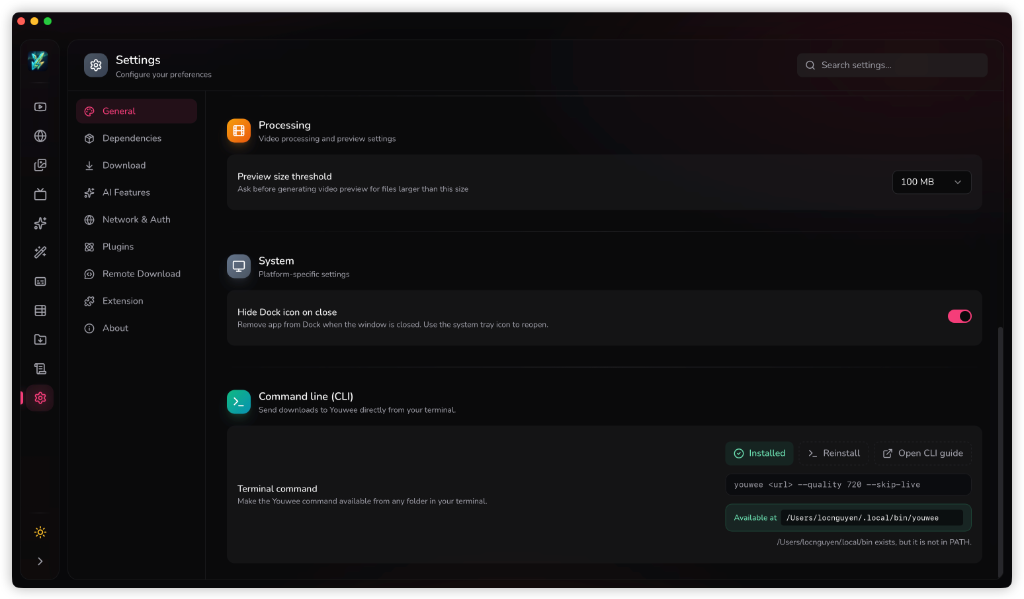
Command Syntax & Examples
The CLI tool acts as a bridge to send commands straight to the running Youwee desktop application. If the app is closed, it will launch automatically to process the command.
youwee [URL] [OPTIONS]Common Examples
1. Quick Download
Download a video with default settings:
youwee "https://www.youtube.com/watch?v=dQw4w9WgXcQ"2. Download with Specific Quality
Force a specific resolution (e.g. 1080p, 4k):
youwee "https://www.youtube.com/watch?v=dQw4w9WgXcQ" --quality 10803. Audio Only Extraction
Extract and download audio only:
youwee "https://www.youtube.com/watch?v=dQw4w9WgXcQ" --audio --quality 1284. Add to Queue Only
Queue the URL without starting the download immediately:
youwee "https://www.youtube.com/watch?v=dQw4w9WgXcQ" --queue-only5. Playlist Control
Allow downloading complete playlists or force single-video download:
youwee "https://www.youtube.com/playlist?list=..." --playlist
youwee "https://www.youtube.com/playlist?list=..." --no-playlist
Command Options Reference
| Argument / Option | Description | Values |
|---|---|---|
| [URL] | Video URL to download (positional argument) | String (URL) |
| -u, --url | Video URL to download (alternative to positional URL) | String (URL) |
| -q, --quality | Video quality limit (e.g. 1080, 4k). For audio, use bitrates like 128 or auto | best, 8k, 4k, 2k, 1080, 720, 480, 360, 128, auto |
| -a, --audio | Download audio only | None |
| --queue-only | Only add the URL to the queue without starting the download | None |
| -t, --target | Routing target engine for downloads | auto, youtube, universal |
| --skip-live | Skip live, scheduled, or was-live videos before downloading | None |
| --playlist | Allow yt-dlp to download playlist URLs | None |
| --no-playlist | Force single-video download for playlist URLs | None |
| --subtitle-mode | Subtitle download mode setting | off, auto, manual |
| --subtitle-langs | Comma-separated subtitle languages | e.g. en,vi,ja |
| --subtitle-format | Subtitle format choice | srt, vtt, ass |
| --embed-subs | Embed subtitles into the output media file | None |
| --download-sections | Time range to download sections | START-END (e.g. 00:30-02:10) |
| --live-from-start | Download livestreams from the very beginning | None |
| -h, --help | Print help information | None |
| -V, --version | Print application version | None |