
Browser Extension
The extension sends pages straight into Youwee with media mode, quality, and queue actions, so capture starts where discovery happens.
What the extension is for
The browser extension is the fastest way to send the page you are already looking at into Youwee. Instead of copying a URL by hand, you can send it straight into the app with the media mode, quality, and queue action already chosen.
It works especially well when you are browsing many videos in a row, switching between YouTube and other supported sites, or deciding on the spot whether something should download now or wait in queue.
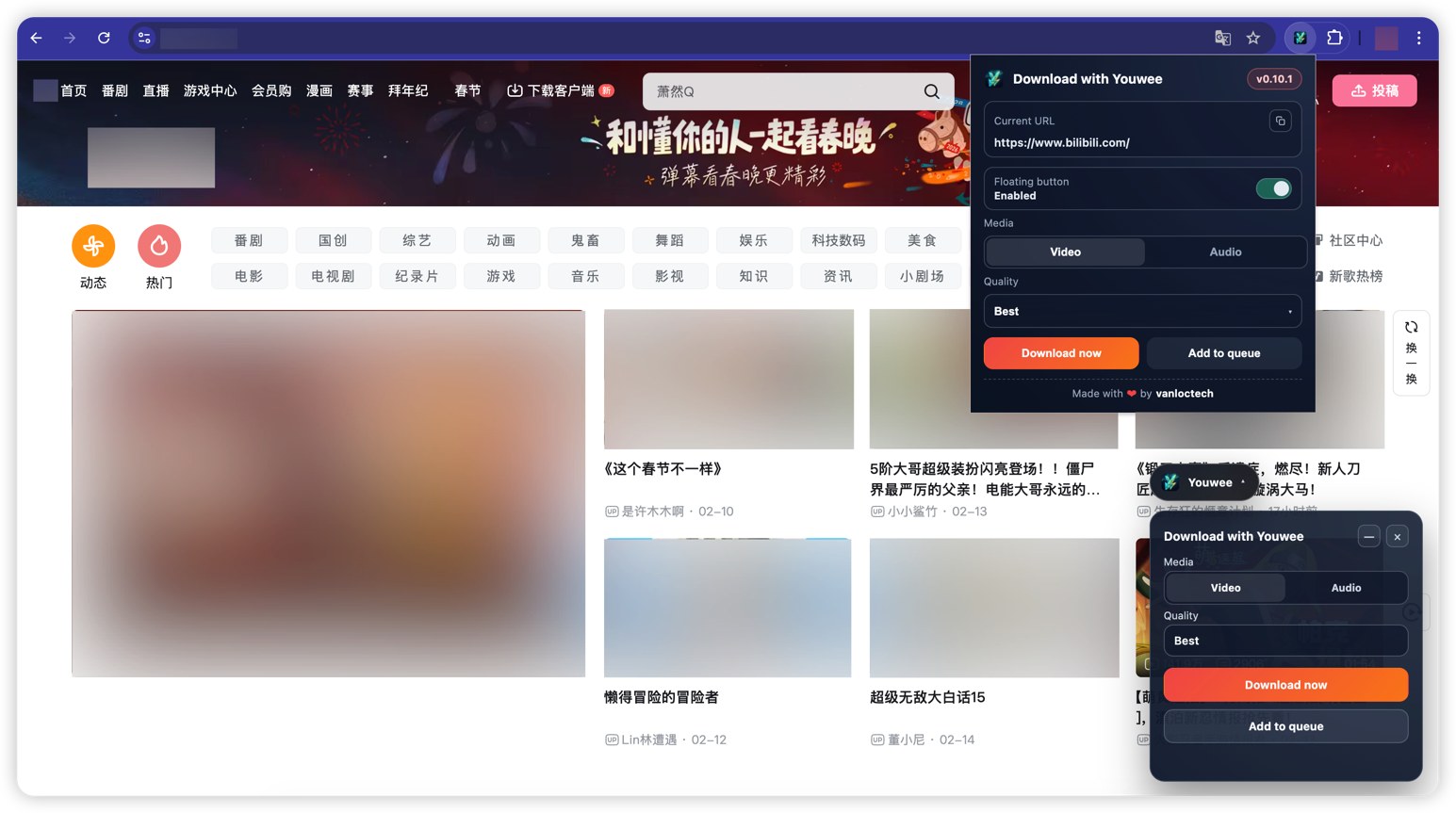
How to use it
Use the floating button
On supported sites, the floating button appears directly on the page. This is the fastest option when you want to send the current media without opening the app first.
- Choose Video or Audio.
- Pick a common quality preset.
- Send it with Download now or Add to queue.
Use the popup
The popup works on ordinary HTTP and HTTPS pages even when the floating button does not appear. Use it when you want the same send-to-app flow from a regular tab.
- Open the extension popup on the current page.
- Choose media mode and quality.
- Send the page into Youwee without copying the URL manually.
What happens after you send
Download now
Use this when you want the item to start as soon as possible. If the app is idle, it can begin immediately. If the app is busy, the item still lands safely in queue instead of getting lost.
Add to queue
Use this when you are collecting links for later review, planning a batch, or browsing quickly and do not want every item to start right away.
Where it works best
The floating button is designed for YouTube, TikTok, Instagram, Facebook, X/Twitter, Vimeo, Twitch, Bilibili, Dailymotion, and SoundCloud. On YouTube watch pages, the extension also normalizes the link so you do not accidentally enqueue a playlist when you only meant to send one video.
Install by browser
Chromium browsers
Use this package for Chrome, Edge, Brave, Opera, Vivaldi, Arc, and Coc Coc.
- Extract Youwee-Extension-Chromium.zip.
- Open chrome://extensions or your browser's extension manager.
- Enable Developer mode.
- Click Load unpacked and select the extracted folder.
Firefox
Firefox uses the signed release package for direct installation.
- Download Youwee-Extension-Firefox-signed.xpi.
- Open the file in Firefox or drag it into the browser.
- Confirm installation when Firefox asks.
Before first use
The desktop app must be installed and opened at least once so your system registers the youwee:// protocol handler. Without that step, the browser may refuse to send links into the app.
Common problems
“Scheme does not have a registered handler”
Open the Youwee desktop app once, then try sending again from the extension.
Floating button is missing
Make sure the current site is supported and check the extension popup to confirm the floating button has not been turned off.
Browser prompt closes and nothing opens
Confirm that Youwee is installed normally and that the app has already been opened at least once on this machine.
Still cannot send a link
Copy the URL into Youwee manually. If manual paste works, the issue is likely with the browser handoff rather than the site itself.