
Subtitle Workshop
Open subtitle files, generate transcripts, sync timing, review QC, translate, and export final subtitles without leaving the same workspace.
Start from the workflow that matches your source
Subtitle Workshop is for opening, creating, fixing, syncing, translating, and exporting subtitle files in one place. It works well whether you already have a subtitle file, need to fetch subtitles from a video URL, or want to generate a fresh transcript with Whisper.
Common ways to begin
- Open an existing SRT, VTT, or ASS file.
- Download available subtitles from a video URL.
- Create a blank subtitle project and write from scratch.
- Generate subtitles from video or audio with Whisper.
Recommended order
- Load or generate the subtitle track.
- Edit text and timing in the table.
- Check playback and QC warnings.
- Use AI tools only where they save time.
- Export the final subtitle format you need.
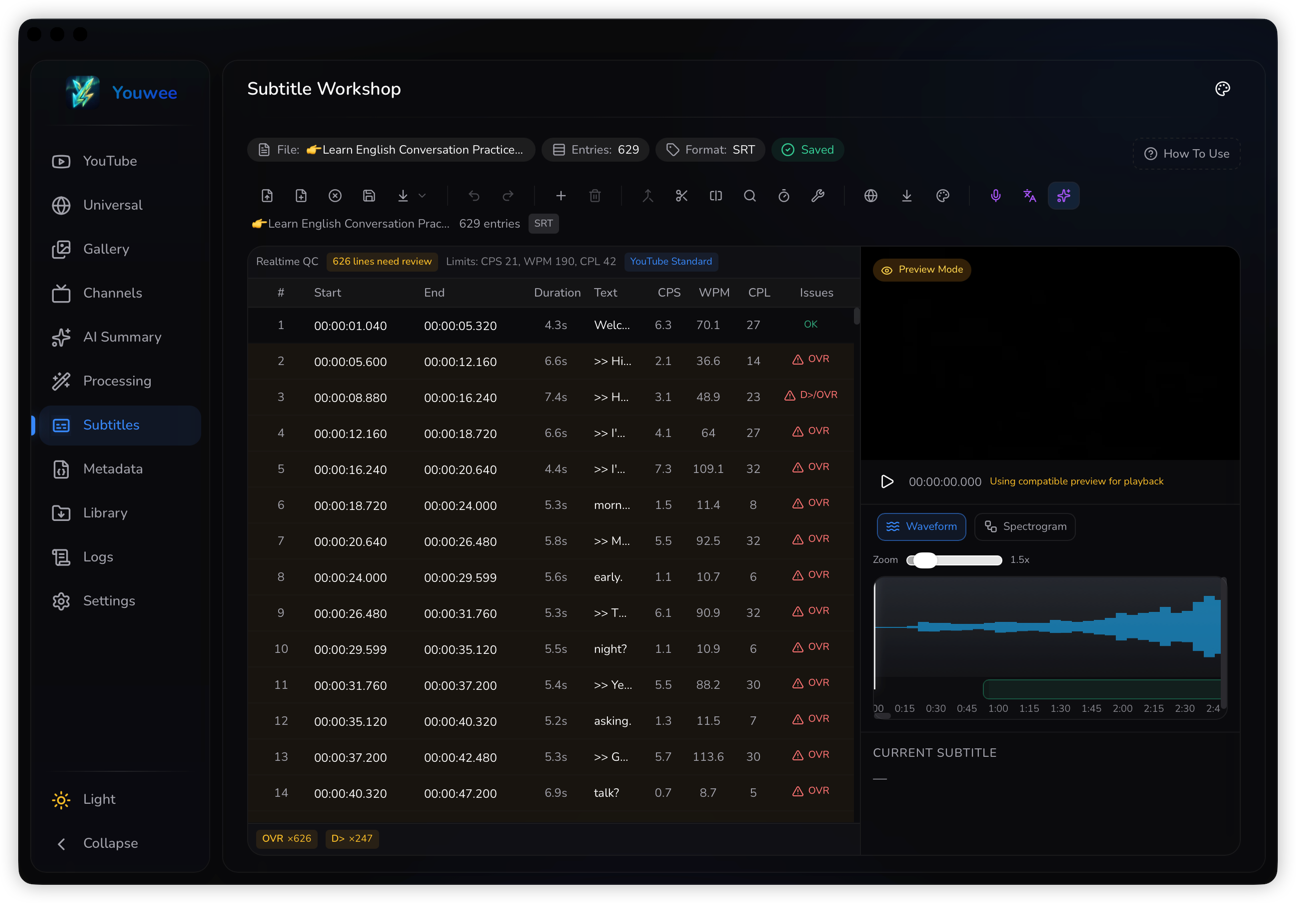
Edit text, timing, and playback together
Once the subtitle workspace is open, most of the work happens between the subtitle table and the video preview. You can edit lines directly, adjust start and end times, seek against the video, and keep checking the active subtitle while the media plays.
This makes the page useful for normal cleanup work such as fixing text, tightening timing, splitting long lines, merging short fragments, or reworking a rough auto-generated transcript.
Useful editing tools
- Find and replace for repeated text fixes.
- Split and merge tools for cleaner reading rhythm.
- Timing tools for shifting, scaling, and two-point sync.
- Style profiles for subtitle rules and ASS output preferences.
Why preview matters
- Check whether a line appears too early or too late.
- See if the reading pace feels natural in motion.
- Set start or end points from the current video position.
- Review the subtitle in context before exporting.
Use QC and waveform tools before final export
Subtitle Workshop is not just a text editor. It also helps you catch subtitle problems before they ship. Realtime QC indicators highlight issues like lines that are too dense, too fast, too short, too long, or overlapping.
When timing needs more precision, the waveform and spectrogram views help you line subtitles up more tightly with speech and scene changes.
Bring in AI only where it helps
AI tools are most useful when they remove repetitive work. In Subtitle Workshop, that usually means generating a draft transcript, translating one language into another, or cleaning grammar and wording after the main timing is already close.
Whisper draft generation
Use Whisper when no subtitle file exists yet. It gives you a starting draft from video or audio so you can move into editing instead of typing from scratch.
Translator mode
Use Translator Mode when you need to compare source and target text side by side. This is the better workflow for translation review because you can keep the original meaning in view while fixing the target lines.
AI helpers that fit real subtitle work
- Generate a draft transcript with Whisper.
- Translate subtitles with the source and target shown side by side.
- Run grammar or style fixes after the text is mostly in place.
- Keep manual review in the loop before final export.
Finish with export or batch tools
After the subtitle track looks right, export it in the format you need. Subtitle Workshop also includes batch and project tools for converting multiple files or appending files into the current project.
This makes the page practical not only for one-off edits, but also for repeated translation, cleanup, and delivery work.
- Export formats: save or export in formats such as SRT, VTT, and ASS.
- Batch convert: convert several subtitle files in one run.
- Append to project: combine multiple subtitle files into the current working project with a configurable gap.