
Remote Download
Use Telegram to send links into Youwee, start pending jobs, check queue status, and control downloads when you are away from the app.
What Remote Download is for
Remote Download lets you control Youwee from Telegram. Instead of waiting until you are back at your desk, you can send a URL to your bot, add it to the queue, start pending jobs, check progress, or stop the current download from your phone.
This is useful when you discover media away from your computer, keep a home machine running as a downloader, or want a simple remote queue without opening the app UI every time.
Before you turn it on
You only need three things: a Telegram bot token from BotFather, the chat ID you want to allow, and a running Youwee app. Remote Download works only for the chat IDs you explicitly add, so it is safe to keep the bot locked down to your own account or a trusted group.
If you want group control, add the bot to the group first and send a message there once before you try to collect the chat ID.
Basic setup
- Create a bot with @BotFather in Telegram and copy the token it gives you.
- Open your new bot and send /start once.
- Open https://api.telegram.org/bot<token>/getUpdates in a browser and copy message.chat.id.
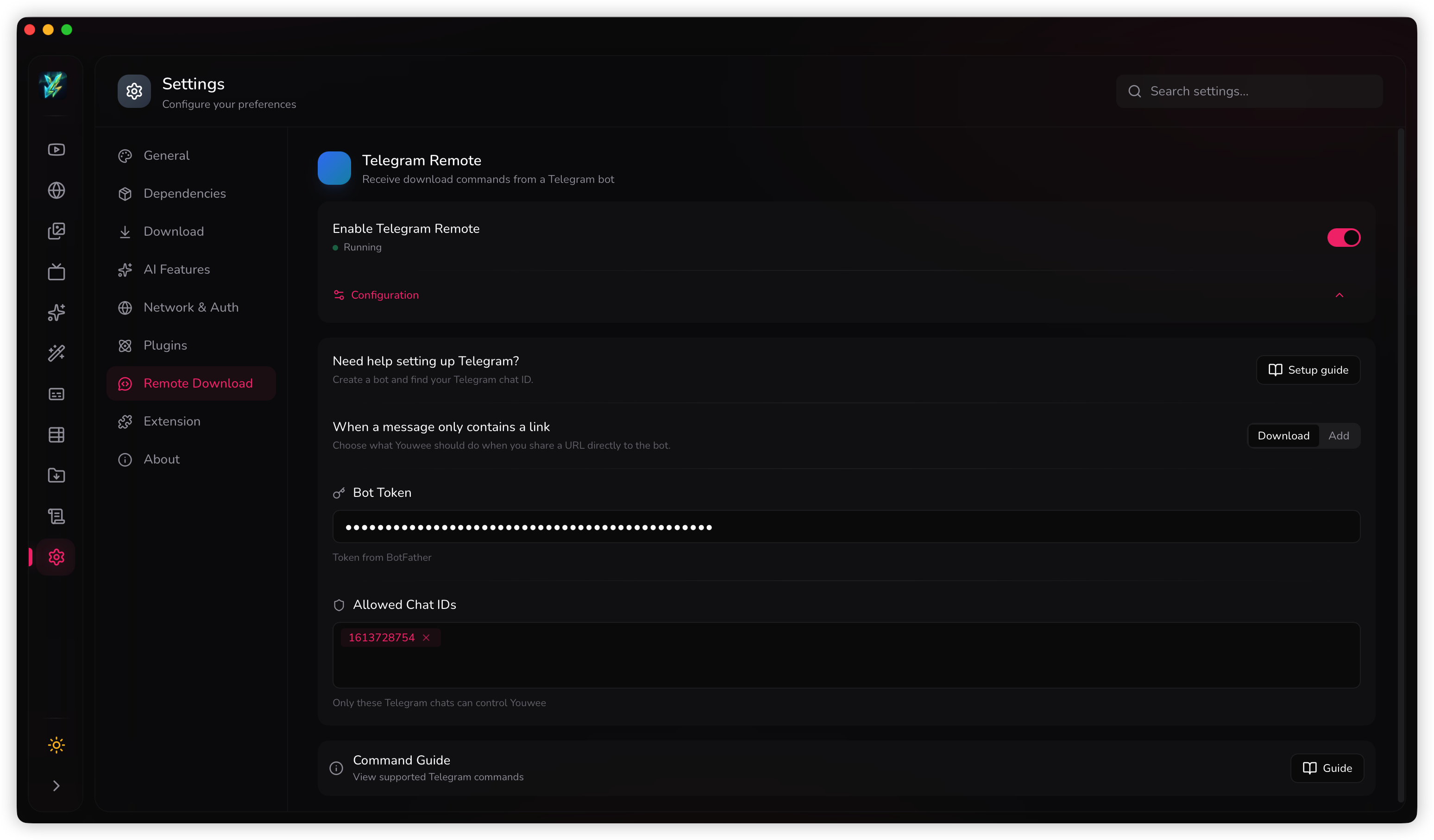
- In Youwee, open Settings > Remote Download, enable Telegram Remote, then paste the bot token.
- Paste one or more numeric chat IDs into Allowed Chat IDs.
After that, send /help to your bot. If the setup is correct, Youwee should respond and the status indicator in settings should show that the connection is running.
Sending links and choosing what happens
You can either send a command like /download <url> or simply share a plain URL to the bot. The settings page lets you choose what a plain URL should do by default:
- Download: add the URL and start immediately if Youwee is idle.
- Add: place the URL in the queue and leave it waiting until you run it later.
This is the main choice to make up front. Use Add if you collect links during the day and process them later. Use Download if you want your remote commands to behave like a one-tap start button.
Commands you will actually use
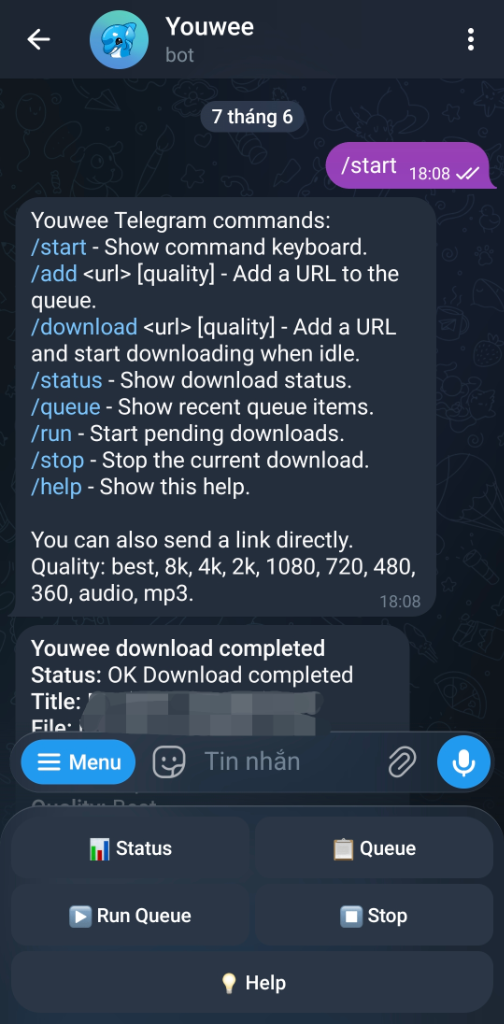
/add <url> [quality]Add a link to the queue without starting it.
/download <url> [quality]Add a link and start it right away if Youwee is idle.
/statusCheck whether Youwee is idle or downloading.
/queueSee recent queue items and their current state.
/runStart pending items already waiting in the queue.
/stopStop the current download.
/helpShow the available commands again in Telegram.
Quality shortcuts
You can append a short quality word after the URL: best, 8k, 4k, 2k, 1080, 720, 480, 360, audio, or mp3.
For example: /download https://youtu.be/example 720 or /add https://youtu.be/example mp3.
Good everyday uses
- Save links from your phone during the day with /add, then run the batch later with /run.
- Send a quick /download when you want the desktop app to start immediately at home.
- Use /status or /queue to check progress without remote desktop or screen sharing.
- Use /stop when a job is wrong and you want to cut it off fast.