
Network & Auth
Use browser cookies, cookies.txt files, and proxy settings when a site needs login state or a special network path before Youwee can download it.
When you need this page
Settings > Network & Auth is the page to open when a site only works after login, a private or members-only video refuses to load, or your network needs a proxy to reach the target site.
Most users do not need this on day one. It becomes important when a normal public URL works in the browser but fails inside Youwee because the site expects cookies, a logged-in profile, or a specific network route.
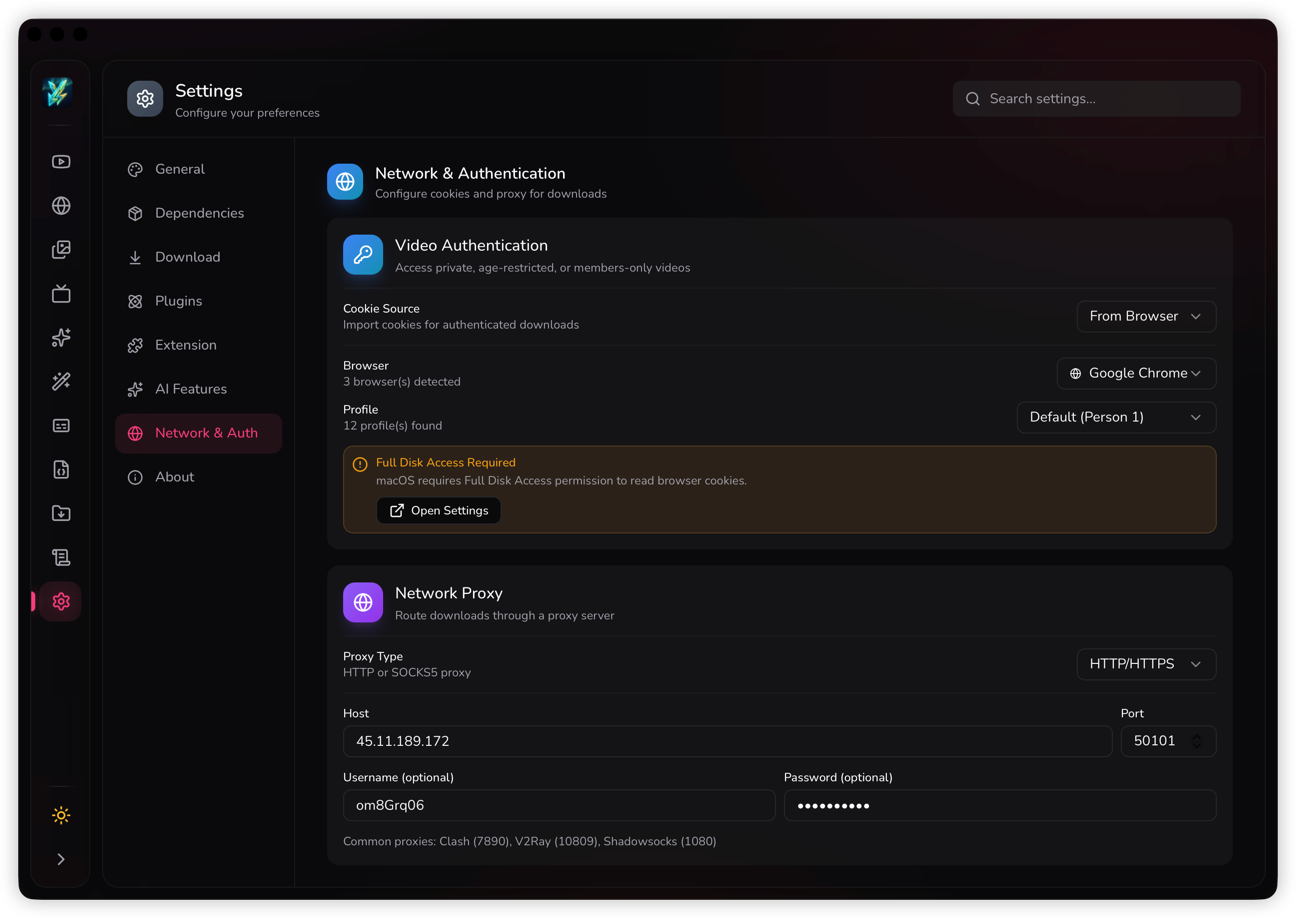
Start with browser cookies first
If the media already plays in your browser account, the easiest path is usually Cookie Source > From Browser. Pick the browser, then choose the profile that is actually logged in to the site you want to download from.
This is the best option for sites where login state matters, because it lets Youwee reuse the same cookies you already have instead of asking you to export anything manually.
Important notes before you try it
- Choose the correct browser profile if you use more than one account.
- On macOS, Youwee may need Full Disk Access before it can read browser cookies.
- On newer Windows Chrome builds, cookie access may fail unless the browser is fully closed.
- If browser mode keeps failing, move to cookie file mode instead of retrying blindly.
Use cookie file mode when browser mode is not enough
If Youwee cannot read your browser profile cleanly, switch to Cookie Source > From File and load a cookies.txt file in Netscape format. This is the safer fallback when browser privacy protections or locked profiles get in the way.
In practice, this is also the better choice when you want a repeatable setup across different machines or you prefer to export only the cookies you intend to use.
Proxy setup
Use the proxy section only if your normal connection cannot reach the site, your region blocks the content, or you already route traffic through a local tool such as Clash, V2Ray, or Shadowsocks.
Choose the proxy type first, then enter host and port. Add username and password only if your proxy actually requires authentication.
A practical way to test it
- Start with the same proxy settings that already work in your browser or system.
- Try a simple public URL first before testing a login-protected URL.
- If the site still fails, disable the proxy once to confirm whether the proxy is actually the problem.