
YouTube Downloads
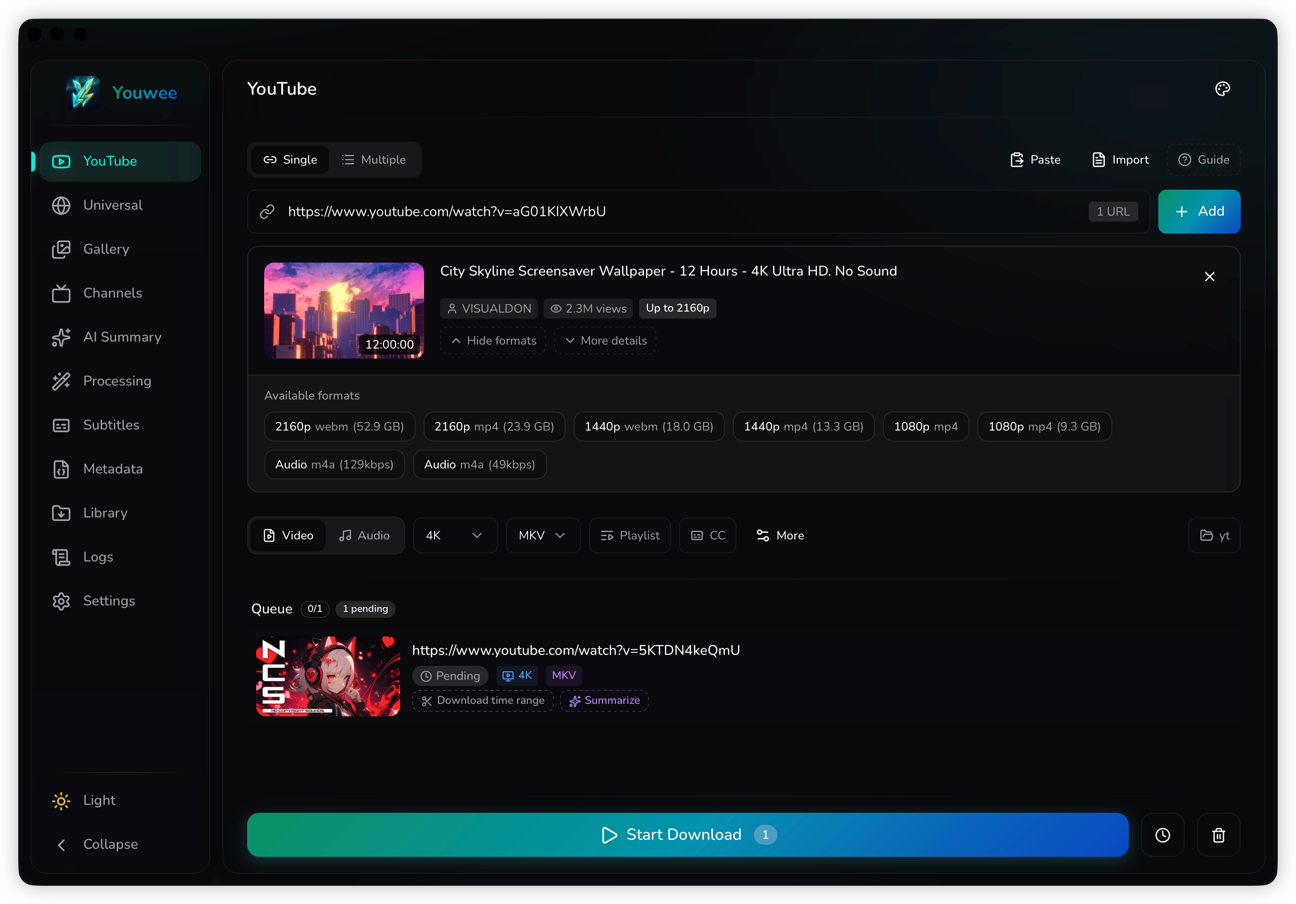
The dedicated YouTube workspace is the fastest path for queueing links, selecting quality, handling subtitles, and scheduling repeatable download jobs.
Queue intake and fetch flow
The YouTube page is optimized for the most common path: paste one URL, inspect metadata, then choose whether to download immediately or build a queue. It also supports multi-URL input, playlist mode, clipboard import, and text-file import when you need bulk intake.
- Switch between single-link and multi-link input without leaving the page.
- Use playlist mode when you want the whole list, or keep it off to isolate one item.
- Limit playlist size when you only want the first portion of a long series instead of the entire source.
- The guide in the input area points users to FFmpeg when they request merged high-resolution output.
Search by Keyword
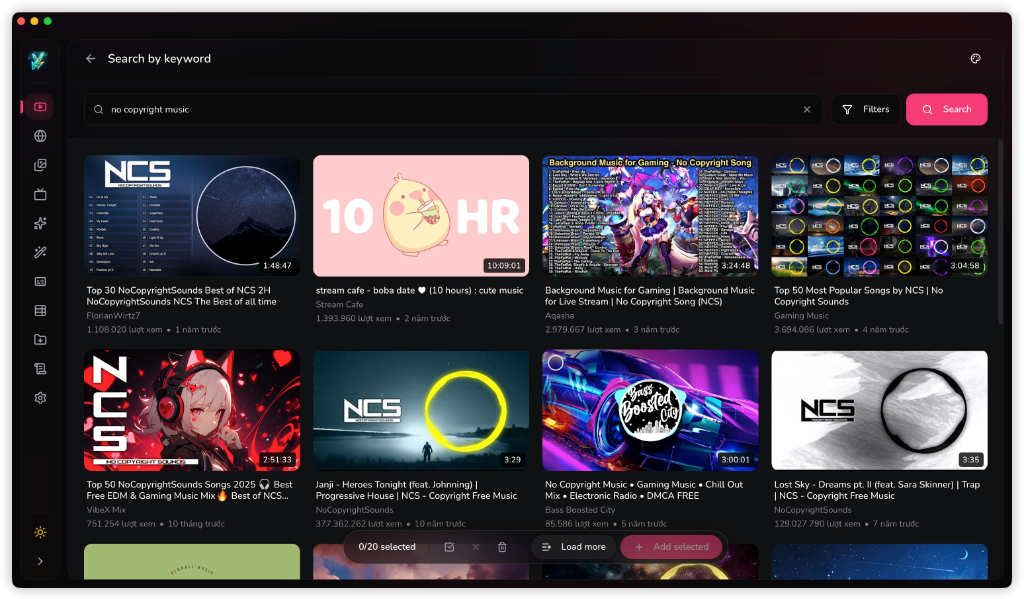
Youwee includes a dedicated YouTube search interface, letting you find videos directly inside the application without needing a web browser. You can search by keywords, filter results, select multiple items, and add them directly to the download queue.
- Filter by upload date (today, this week, this month, this year) and video duration (short, medium, long).
- Sort results by relevance or popularity (view count).
- Filter by video features like HD, 4K, Live, subtitles, or Creative Commons licences.
- Batch select multiple search results and add them to your queue or click 'Load more' to fetch additional results.
Quality, formats, and codecs
YouTube downloads expose separate controls for media mode, quality, container format, codecs, output path, and retry behavior. The app keeps the fast path visible while letting users open deeper settings only when needed.
For 2K, 4K, 8K, or Best, users should usually leave Video Codec on Auto. Many sources only expose exact higher-resolution streams through VP9 or AV1, so forcing H.264 can lead to lower-than-expected output or format constraints.
Video mode
Choose from Best, 8K, 4K, 2K, 1080p, 720p, 480p, or 360p, then pair that with MP4, MKV, or WebM plus codec preferences.
Audio mode
Switch to audio-only output for MP3, M4A, or Opus, with bitrate control when that matters more than source fidelity.
Subtitles and partial downloads
Download-time subtitle handling lives directly in the YouTube flow. Users can turn subtitles off, use automatic discovery, or pick explicit languages, then choose whether to download them separately or embed them into the finished output.
For smaller captures, queue items also support a time-range editor so users can save only the part they need instead of the entire source video.
Capture missing YouTube detail states
Capture the exact UI state below so this page can show the missing workflow detail without ambiguity.
- Open one queue item and show the time-range popover with start and end values visible.
- Open subtitle settings in both Auto and Manual modes with the language picker expanded.
Scheduling, SponsorBlock, and retries
The YouTube page is not just immediate download. It also supports scheduled starts, queue persistence, live-from-start for streams, SponsorBlock segment handling, and automatic retry rules for unstable jobs.
SponsorBlock can remove or mark sponsors, intros, outros, and self-promo segments before the result lands in the library.
Retries and scheduled starts matter when users are pulling long playlists, live streams, or overnight batches.
The schedule popover can delay start time, optionally stop later, and then expose a countdown plus a manual Start Now override.
Picking the output folder before a scheduled batch is especially useful for large playlists and overnight jobs that should land in a dedicated archive location.
Playlist scale and live capture
Playlist handling and live-stream capture are first-class controls, not edge cases. Users can enable full playlist download, cap playlist size, tune queue concurrency, and decide whether a live stream should start from the current point or from the beginning when the source supports it.
- Use parallel downloads carefully on large playlists when local network and disk performance are stable.
- Use playlist limit for sampling, testing, or partial archival runs.
- Use download live from start when the goal is full-event capture rather than joining the stream mid-way.
Capture missing queue automation states
Capture the exact UI state below so this page can show the missing workflow detail without ambiguity.
- Show SponsorBlock controls visible inside quick settings or advanced download settings.
- Show a scheduled YouTube download item with countdown and the “Start Now” action visible.