
Data Export
Build structured export tables or fetch companion assets such as comments, thumbnails, descriptions, and subtitles without treating every task like a full media download.
Pick the right tab first
Data Export is for collecting information without downloading the video itself. The page is split into two tabs so you can either build a clean export table or fetch companion files such as thumbnails, subtitles, comments, and descriptions.
- Data tab: Build a preview table from playlists, channels, search keywords, or URL lists, then export it in the format you need.
- Assets tab: Download support files like info.json, descriptions, comments, thumbnails, and subtitles.
Use the Data tab for tables, audits, and research
The Data tab is the right choice when you want a spreadsheet-style result. You can paste a playlist, a channel, a list of URLs, or enter search keywords, let Youwee detect the source, preview the rows, choose the fields you care about, and then export the result.
This is useful for research, content planning, archiving, channel reviews, URL collection, or any workflow where titles, upload dates, views, links, and descriptions matter more than the media file.
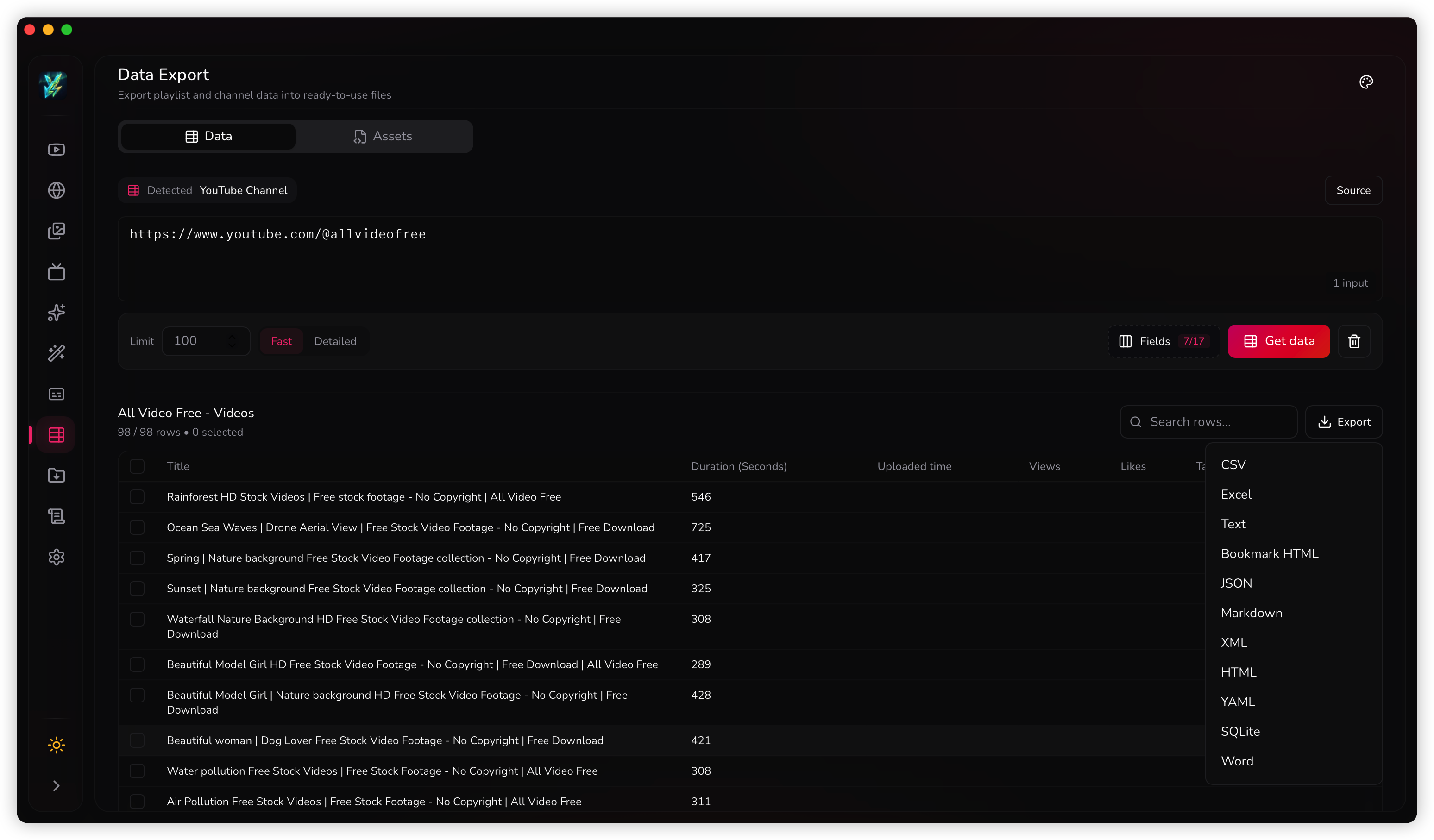
Typical Data workflow
- Paste a playlist URL, channel URL, list of video URLs, or enter search keywords directly.
- Check the detected source and override it only if needed.
- Set a limit so you do not pull more rows than you need.
- Choose Fast mode for speed or Detailed mode for richer fields.
- Preview the rows, search, trim fields, then export.
Good fits for this tab
- Export CSV or Excel for sorting and analysis.
- Export Markdown, JSON, or YAML for documentation workflows.
- Copy selected URLs and send them to Download later.
- Save the export to Library so it stays in your history.
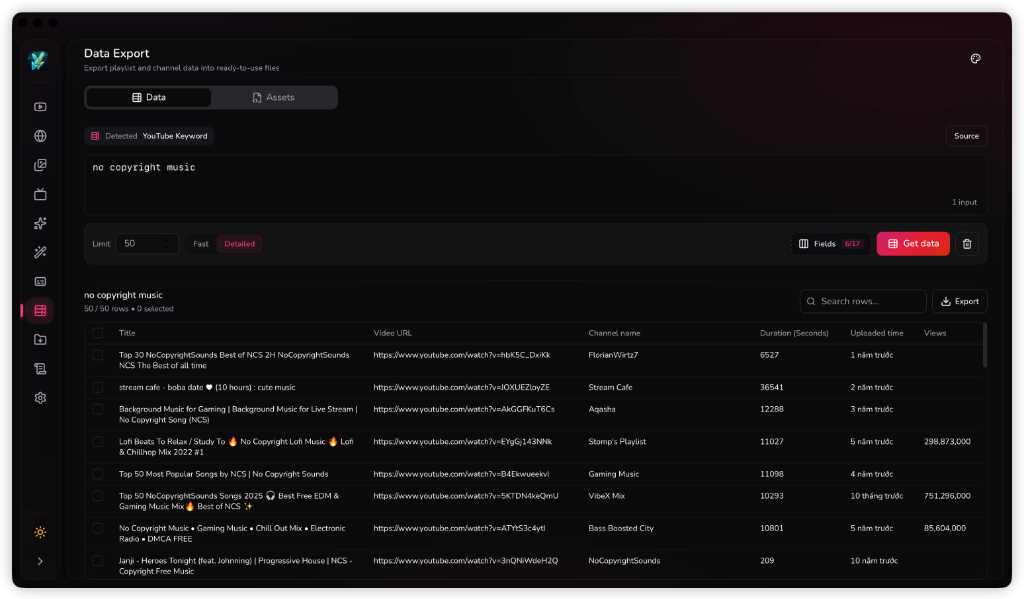
Search by Keyword in Data Export
In addition to playlist and channel URLs, the Data tab supports entering search keywords. When you type a search term, Youwee automatically detects it as a 'YouTube Keyword' source. It then fetches matching search results from YouTube, letting you preview the metadata (such as titles, URLs, channel names, duration, and view counts) in a table, select specific fields, and export them.
Use the Assets tab when you need support files
The Assets tab is for downloading the files that sit around a video instead of the video itself. This includes info.json, the description text, comments, the thumbnail image, and subtitle files.
This is the better tab when you want material for summaries, subtitle work, research, moderation review, or documentation, but do not need the full media file.
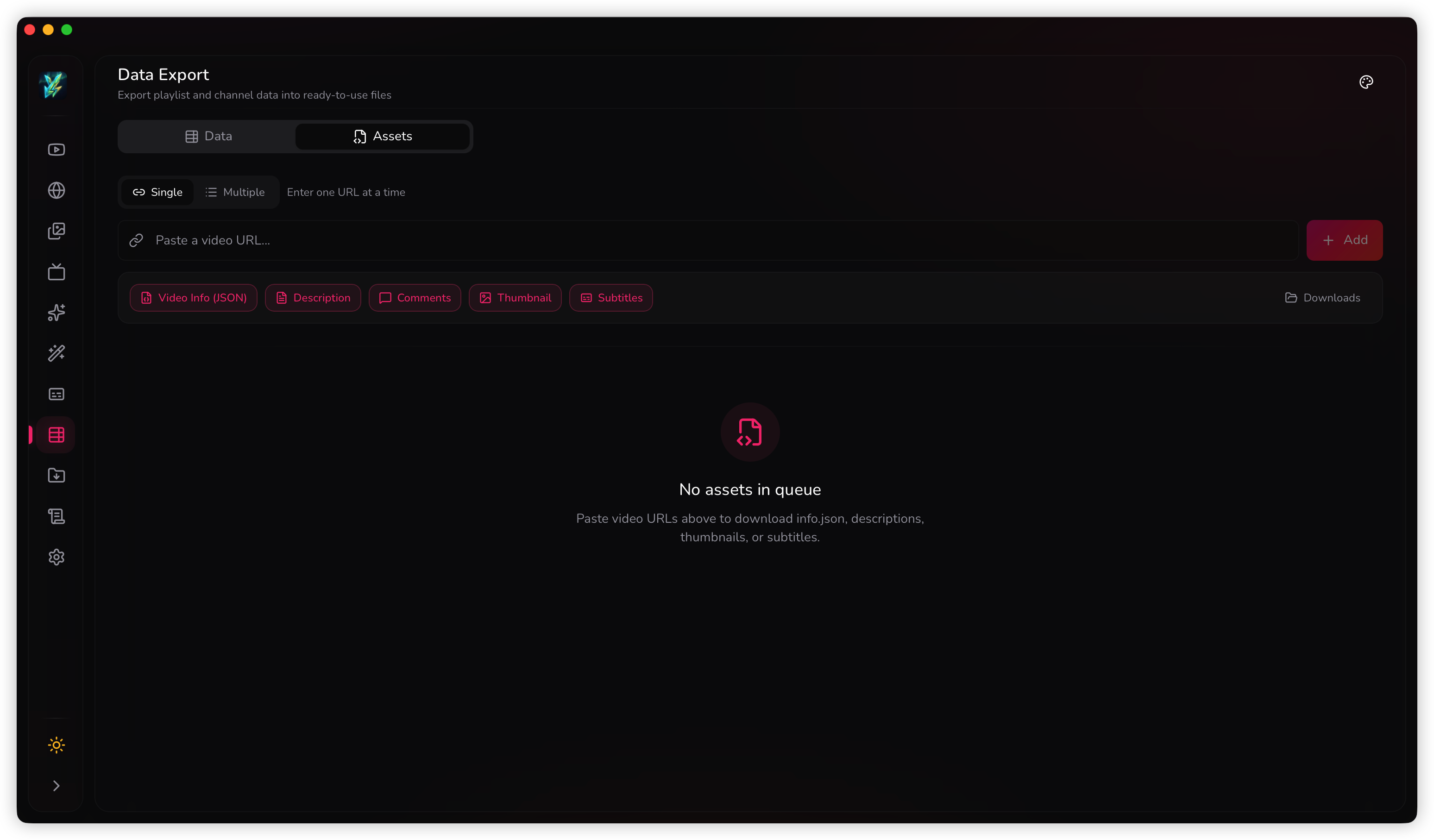
Typical Assets workflow
- Paste one or more video URLs and add them to the queue.
- Turn on only the assets you actually need.
- Choose the output folder before starting a larger batch.
- If you need subtitles, select the languages and output format first.
- Fetch the assets and review the completed queue items.
Which tab should you use?
Choose the Data tab when the end result should be a table or export file. Choose the Assets tab when the end result should be companion files you can open, archive, or feed into another workflow.
- Use Data for playlists, channel inventories, keyword search results, field filtering, export formats, and URL review.
- Use Assets for descriptions, comments, thumbnails, subtitles, and queue-based file collection.
- Use both when you want a structured table first, then fetch side files only for the rows that matter.