
Video Processing
Natural-language editing, media attachments, preview management, and job history turn Youwee into a practical post-download processing surface.
What Video Processing is for
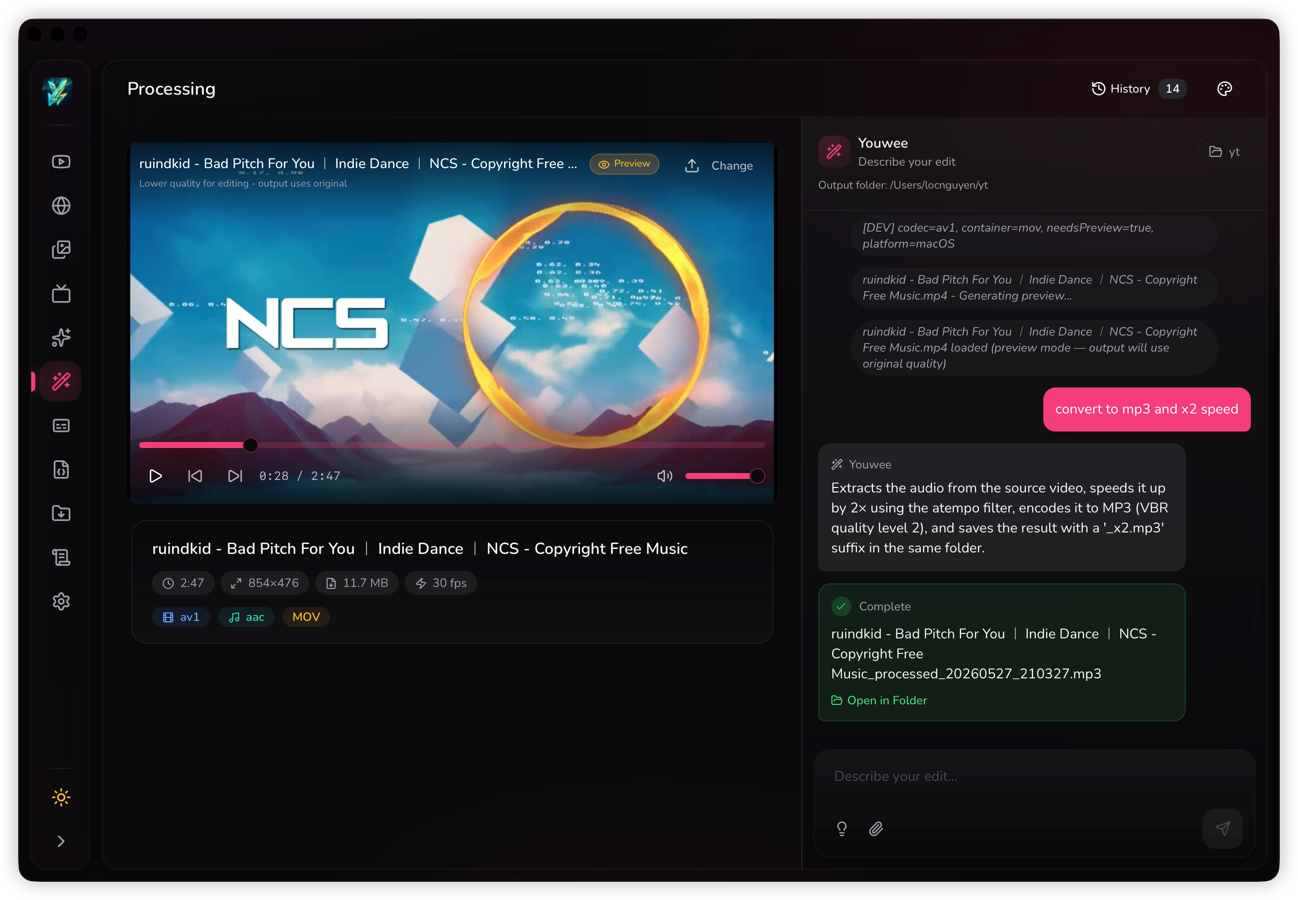
Video Processing is for editing a file you already have on your computer. Use it when the download is done and you want to turn that file into something easier to publish, share, archive, or reuse.
Common jobs include trimming a clip, extracting audio, resizing for upload, compressing a large file, turning a short moment into a GIF, burning subtitles into the video, or adding a watermark, intro, or outro.
Start with a simple request
The fastest way to use this screen is to start with one clear action, review the output, then run a second pass only if you still need more changes.
- Pick the video or audio file you want to edit.
- Set the output folder first, especially if you plan to keep several versions.
- Type one direct instruction such as “cut from 00:30 to 01:10”, “extract audio as mp3”, or “resize to 1080p for upload”.
- Run the job, check the result, then repeat with a new request if needed.
Good first prompts
- Cut from 00:45 to 01:20.
- Extract audio as mp3.
- Compress this video for sending on chat.
- Resize to 1080p.
- Create a GIF from 00:10 to 00:16.
When to split the work
- Trim first, then compress.
- Resize first, then add watermark.
- Review subtitle timing before burning subtitles in.
- Keep one clean master export before making smaller social versions.
Use templates and attachments when the job needs context
Prompt templates help when you already know the kind of edit you want but do not want to write it from scratch. They are useful for common actions like cut, extract audio, resize, convert, compress, speed change, GIF export, mute, overlay, watermark, intro, outro, subtitle burn-in, and merging media.
Attach extra files when the result depends on something outside the main video. For example, attach a subtitle file for hardsubs, an image for a logo or watermark, or another media file when you want to combine clips.
Common attachment workflows
- Attach an .srt or .ass file and ask Youwee to burn subtitles into the video.
- Attach a logo image and ask for a top-right or bottom-right watermark.
- Attach another video if you want to merge clips or add an intro/outro.
Preview, output folder, and large files
Some files can be previewed immediately. Larger files or awkward formats may ask whether you want a full preview or a lighter thumbnail-based preview first.
If Youwee falls back to thumbnails, that does not mean the file cannot be processed. It usually means the app is keeping the preview step lighter so you can continue faster.
Pick your output folder before longer jobs so the finished file lands where you expect. This matters most when you are creating several versions of the same source file.
Review the result and reuse what worked
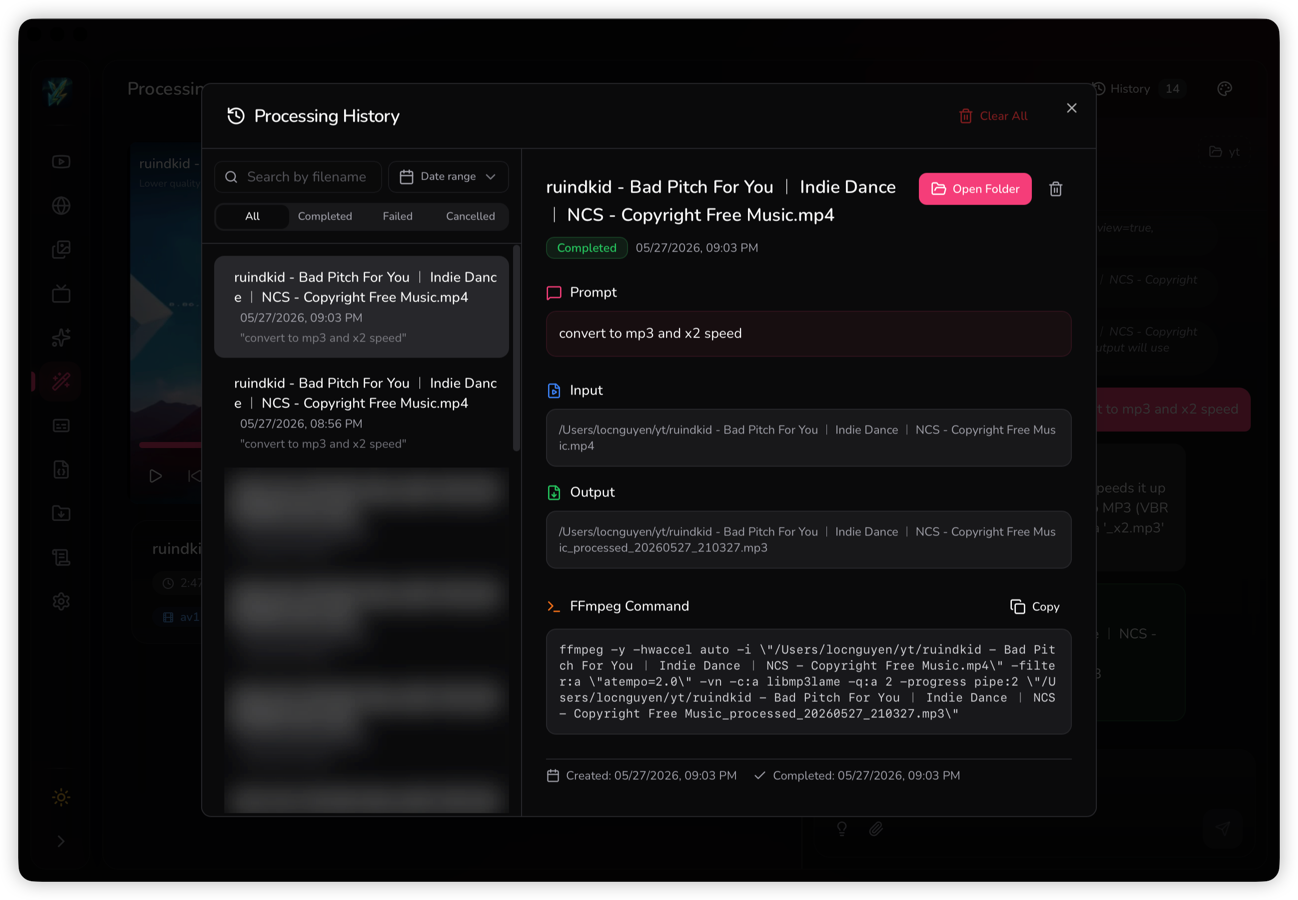
Processing history is useful when you repeat the same kind of edit often. You can go back to earlier jobs, review the prompt you used, confirm the input and output paths, reopen the output folder, and retry from a clearer starting point.
In practice, this makes Video Processing useful for repeat work such as clipping highlights, exporting audio versions, producing subtitle-ready copies, or preparing several delivery sizes from one source file.