
Logs & Diagnostics
View, search, filter, and export application logs for troubleshooting download or plugin errors.
When to open Logs
Open Logs when a download fails, a plugin action does not behave the way you expected, or you need more than a short error toast to understand what happened.
You do not need to read every line. The goal is to narrow the problem quickly, then export the relevant log if you need to report the issue.
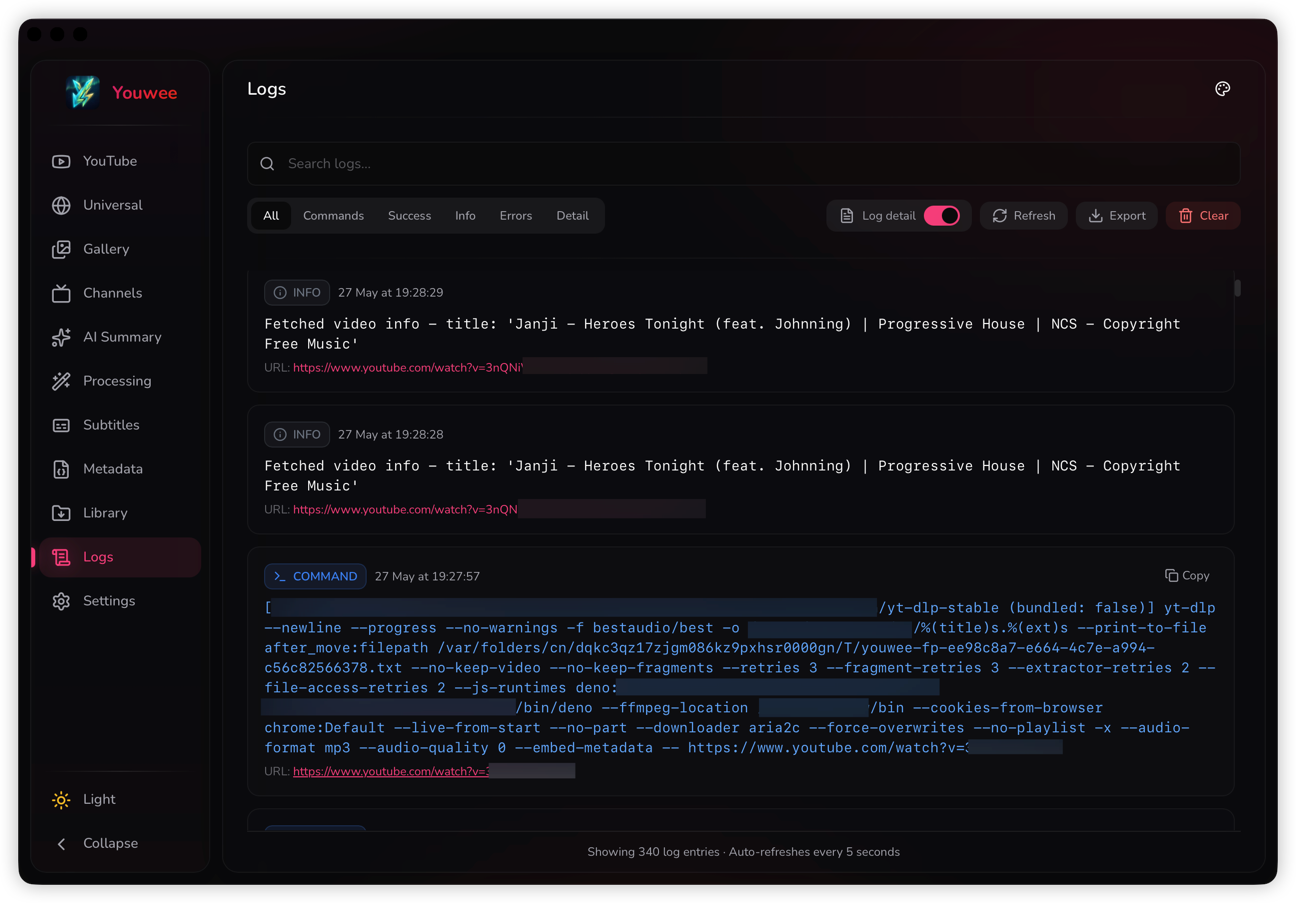
How to read it quickly
Start with the filters instead of scrolling through everything. In most cases, the fastest path is:
- Filter to
Errorsif the job failed. - Switch to
Commandsif you need to see what tool or site request actually ran. - Use the search box for the site name, URL fragment, plugin name, or a known error word.
- Turn on the detail toggle if you need extra stderr output.
What to look for
- authentication or cookie errors on private or login-only videos
- missing dependency errors such as FFmpeg, yt-dlp, gallery-dl, or Deno
- network or proxy failures
- site-specific blocks, rate limits, or unsupported formats
- plugin workflow errors after a download finishes
If a queue item hints that you should view logs, start from the same time window as that failed item instead of searching the entire history first.
Export before you clear
If you are about to ask for help, use <code>Export</code> before you clear the logs. That saves a JSON file you can keep for bug reports or for your own later comparison.
Clearing is useful after a fix, because it gives you a clean run and makes the next failure much easier to isolate.